Lee este artículo en español.
HTML to PDF in n8n: Invoices and Reports with One Node (Free Workflow)
Updated
Short answer: n8n has no built-in "HTML to PDF" node. Add an HTTP Request node that sends your HTML (
POST) tohttps://api.cofferdock.com/pdfwith yourx-api-keyheader, set Response Format to File, and the node returns the PDF in thedatabinary property. Each PDF uses 1 credit, whatever its number of pages.
If you automate with n8n, sooner or later you need a PDF inside a workflow: an invoice for every order, a weekly report, a quote, a ticket or a certificate. You don't need to run Puppeteer, Gotenberg or a server of your own. One HTTP Request node calling the Cofferdock API turns your HTML into a PDF, and the node's output is the PDF file itself.
One thing up front, because people search for it: n8n has no built-in "HTML to PDF" node. The usual way is exactly this: an HTTP Request to an API that renders the HTML.
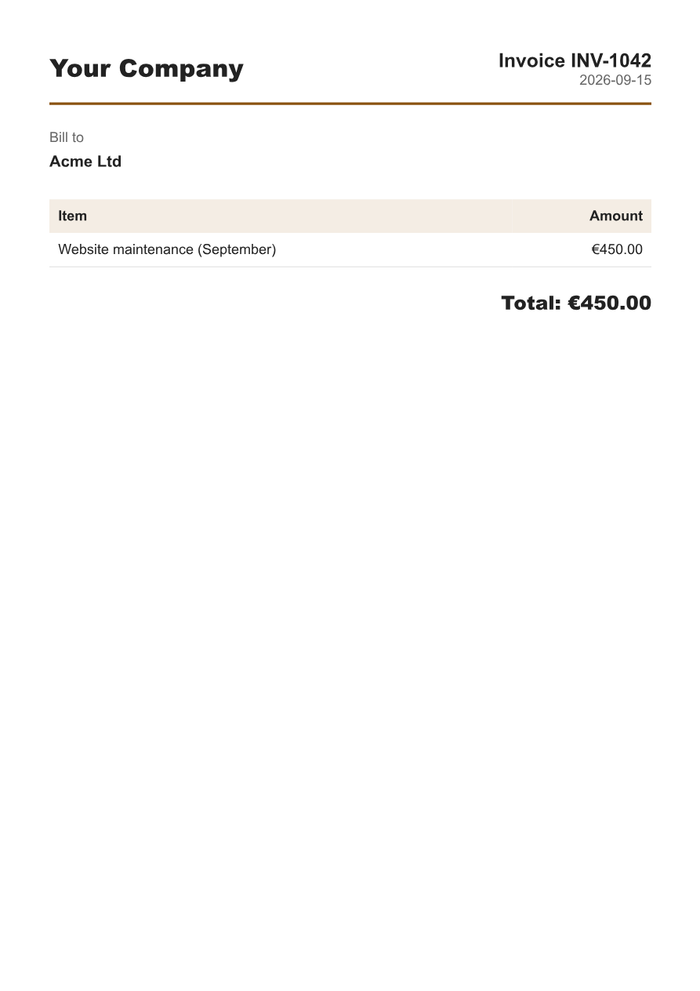
This is the first page of the real PDF the workflow below returns in n8n:
The fastest way: import the invoice workflow
- In n8n, create a new workflow and open the ⋯ menu (top right) → Import from URL.
- Paste this link:
https://cofferdock.com/static/blog/n8n/html-to-pdf.json - Open the HTML to PDF node and replace
YOUR_API_KEYwith your key. - Click Test workflow. The last node returns the invoice as a PDF file.
You can also download the workflow file and use Import from File, or copy its content and paste it onto the canvas with Ctrl+V. Then replace the Invoice data node with your real trigger: a webhook from your store, a form or a new row in Google Sheets.
What you need
- A Cofferdock account. The free plan gives you 50 credits a month with no card, plenty to test.
- Your API key, created in your dashboard with "+ Create key". It's shown only once, so copy and save it.
- An HTTP Request node in your n8n workflow.
Step by step in the HTTP Request node
- Method:
POST - URL:
https://api.cofferdock.com/pdf - Send Query Parameters: on, add the page size:
format=A4(andmargin=15if you want 15 mm margins). - Send Headers: on, add two headers:
x-api-keywith your key, andContent-Typewith the valuetext/html. - Send Body: on → Body Content Type
Raw→ Content Typetext/html→ in Body, paste your HTML. - Under Options → Response → Response Format, choose File.
The output is the PDF in the data binary property. In Gmail, add an attachment and type data; in Google Drive → Upload, the input data field is also data.
Fill the PDF with data from your workflow
Switch the Body field to Expression and insert values from earlier nodes:
<h1>Invoice {{ $json.number }}</h1>
<p>Bill to: <strong>{{ $json.customer }}</strong></p>
<p>Date: {{ $now.toFormat('yyyy-LL-dd') }}</p>
<table style="width:100%">
  <tr><td>{{ $json.item }}</td><td style="text-align:right">{{ $json.total }}</td></tr>
</table>
If the trigger brings several orders, n8n runs the node once per order and you get one PDF each. A typical flow is Webhook (new order) → HTTP Request (PDF) → Gmail (send to the customer) → Google Drive (archive).
No HTML at all: the invoice template
Prefer not to design the invoice? Send the built-in invoice template with your data as JSON:
- Body Content Type:
JSON→ Specify Body:Using JSON - Remove the
Content-Type: text/htmlheader. - JSON:
{
  "template": "invoice",
  "data": {
    "brand": "Your Company", "number": "INV-1042", "date": "2026-09-15", "client": "Acme Ltd",
    "item1": "Website maintenance", "price1": "€450.00",
    "subtotal": "€450.00", "tax": "€94.50", "total": "€544.50"
  },
  "output": "pdf"
}
All fields are listed at cofferdock.com/templates.json and you can preview the design on the templates page. Texts are escaped, so customer data can't break the layout.
Options you can tweak
| Option | Default | What it does |
|---|---|---|
format | A4 | Page size: A4, A3, A5, Letter, Legal or Tabloid. |
landscape | false | true for landscape orientation. |
margin | 0 | Margin in millimeters on all four sides (0 to 100). |
scale | 1 | Content scale from 0.1 to 2. |
print_background | true | Prints background colors and images. false for a plainer PDF. |
output | pdf | pdf returns the file; url returns a temporary download link (15 minutes). |
Logos, images and web fonts work with their https://… link inside the HTML or CSS. The document is rendered without running JavaScript, so charts drawn with JS won't appear: use images or the chart tool instead.
Page breaks, headers and long tables
- Force a new page before an element with
style="break-before: page". - Avoid splitting a block across pages with
style="break-inside: avoid"(useful for table rows and totals). - Repeat a table header on every page by putting it in
<thead>.
Common errors and how to fix them
| What you see | Why | Fix |
|---|---|---|
401 Missing x-api-key header / Invalid API key | The header is missing, misspelled or the key was revoked. | Header name exactly x-api-key. |
| An empty or very short PDF | The Body expression returned nothing, or Body Content Type isn't Raw. | Check the Body preview in n8n shows your HTML. |
| The node returns text instead of a file | Response Format is still on Autodetect/JSON. | Options → Response → Response Format → File. |
| Colors or backgrounds are missing | print_background is false. | Remove it or set it to true. |
429 Too many requests or Monthly limit reached | Per-minute limit of your plan, or no credits left this month. | Add a Wait node in big loops, or upgrade / buy extra credits. |
Prefer to see it in code?
curl -X POST "https://api.cofferdock.com/pdf?format=A4&margin=15" \
  -H "x-api-key: YOUR_KEY" \
  -H "Content-Type: text/html" \
  --data-binary "<h1 style='color:#8a5210'>Invoice #1234</h1>" \
  -o invoice.pdf
How much does it cost?
Each PDF uses 1 credit, whatever its number of pages. Every Cofferdock tool draws from the same credit pool: merging, watermarking, password-protecting or numbering the PDF afterwards uses the same subscription.
FAQ
Does n8n have a native HTML to PDF node? No. You do it with the HTTP Request node calling the Cofferdock API, which generates the PDF.
Do I need to know how to code? No. Import the workflow, change the texts and connect your trigger. Or use the invoice template and skip the HTML.
Can I password-protect or merge the PDF? Yes, with another HTTP Request to the protect PDF or merge PDF tools, in the same workflow.
Can I generate PDFs in a loop? Yes. n8n runs the HTTP Request once per incoming item and you get one PDF per item.
Related guides
- HTML to PDF in Make and in Zapier
- HTML to image in n8n
- URL to PDF in n8n: save a whole web page as a PDF
Full reference with every option: HTML to PDF API. No account yet? Create one for free and send your first invoice today.